Cable clutter can make even a clean home office feel messy. Laptop chargers, monitor cables, phone chargers, lamp cords, power strips, and headphone wires can quickly become tangled if they do not have a simple system.
The good news is that cable management does not need to be complicated. You do not need a perfect desk setup or expensive accessories to make your workspace look cleaner and easier to use.
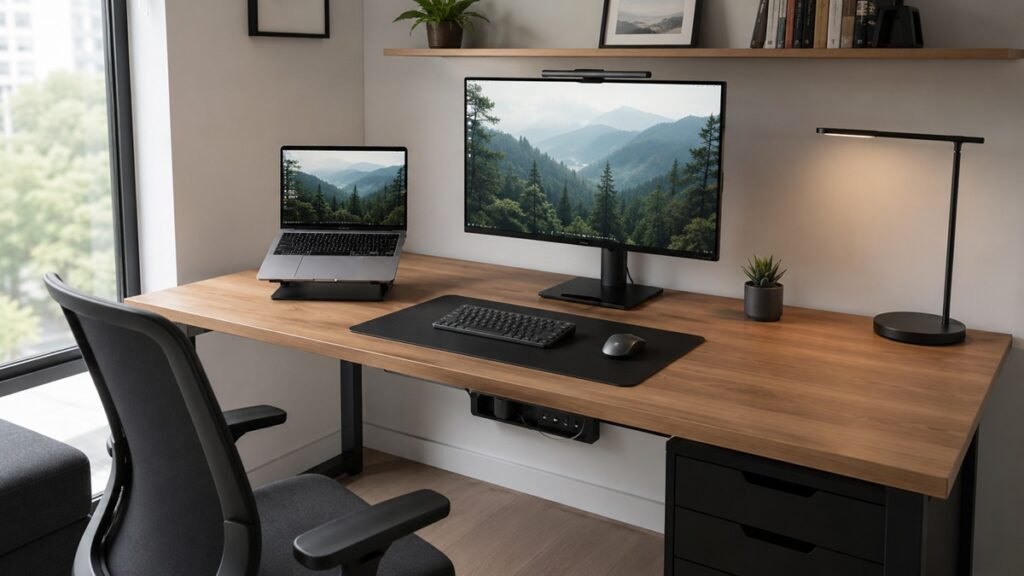
These cable management ideas for home office desks will help you organize your cords, reduce visual clutter, and make your workspace easier to reset.
1. Start by Removing Cables You Do Not Use
Before buying cable clips, trays, or organizers, start by removing cables you no longer need. Many desks become messy because old chargers, unused cords, and extra adapters stay plugged in even when they are not used anymore.
Look around your desk and identify every cable. Ask yourself:
- What device does this cable belong to?
- Do I use it every day?
- Does it need to stay plugged in?
- Is there a duplicate cable I can store somewhere else?
- Is this cable still in good condition?
Remove anything that does not belong in your daily setup. Store backup cables in a drawer, box, or labeled pouch instead of leaving them on the desk.
If you are setting up your workspace from scratch, our small home office setup checklist can help you plan the full desk area before organizing the cables.
2. Separate Daily Cables From Occasional Cables
Not every cable needs to stay on your desk. A simple way to reduce clutter is to separate daily-use cables from occasional-use cables.
Daily cables may include:
- Laptop charger
- Monitor cable
- Keyboard cable
- Mouse cable
- Desk lamp cord
- Phone charger
Occasional cables may include:
- Camera cable
- External hard drive cable
- Printer cable
- Extra USB cables
- Travel chargers
- Old device chargers
Keep daily cables easy to reach. Move occasional cables into a storage box, drawer, or cable pouch. This keeps your desk focused on what you actually use.
3. Place Your Power Strip in a Better Position
A power strip is often the center of cable clutter. If it sits loosely on the floor, cables may spread in every direction and collect dust.
Try placing your power strip in a more controlled location, such as:
- Behind the desk
- Under the desk
- Inside a cable box
- On a low shelf near the desk
- Attached to the back side of the desk if safe and practical
The best position depends on your desk, outlet location, and the devices you use. Choose a place that keeps cords organized but still easy to access when needed.
Avoid placing power strips where they can be kicked, pulled, covered by heavy items, or exposed to liquid.
4. Use Cable Clips for Chargers
Cable clips are useful for keeping chargers from falling behind the desk. They can hold your laptop charger, phone charger, or USB cable near the edge of your desk so they are easy to grab.
You can place cable clips:
- On the side of the desk
- Along the back edge of the desk
- Near your charging area
- Behind your monitor
- Near your laptop stand
This is especially helpful if you unplug your laptop or phone often. Instead of searching for a cable on the floor, the charger stays in the same spot.
For small desks, use only a few clips. Too many clips can make the setup feel busy instead of clean.
5. Group Similar Cables Together
When multiple cables run in different directions, the desk can quickly look messy. Grouping similar cables helps create a cleaner path.
You can group cables by purpose, such as:
- Computer cables
- Charging cables
- Monitor cables
- Audio cables
- Lamp and power cables
Use simple cable ties, hook-and-loop straps, or reusable bands to keep groups together. Avoid tying cables too tightly because you may need to adjust or remove them later.
A flexible setup is usually better than a setup that looks perfect but is difficult to change.
6. Shorten Long Cables Without Damaging Them
Long cables can create loops, tangles, and clutter under the desk. Instead of letting extra cable length hang loosely, gently coil the extra length and secure it with a reusable tie.
Good options for managing extra length include:
- Hook-and-loop cable straps
- Reusable twist ties
- Soft cable wraps
- Cable sleeves
- Under-desk cable trays
Do not bend cables sharply or wrap them too tightly. This may damage the cable over time. Keep the coil loose enough that the cable can sit naturally.
The goal is to reduce excess length while keeping the cable easy to move and replace.
7. Label Cables That Look Similar
If several cables look the same, labeling them can save time. This is helpful when you have multiple chargers, USB cables, or monitor cables behind your desk.
You can label cables using:
- Small adhesive labels
- Masking tape
- Label maker tape
- Color-coded cable tags
- Small paper tags attached with string
Simple labels may include:
- Laptop
- Monitor
- Lamp
- Phone
- Printer
- Hard Drive
Labels are especially useful when you need to unplug something quickly or troubleshoot your setup.
8. Use a Cable Box for Visual Clutter
A cable box can hide a power strip and extra cable length. It is useful if your desk is in a living room, bedroom, or shared space where visible cords make the room feel messy.
A cable box can help hide:
- Power strips
- Charger blocks
- Extra cable length
- Small adapters
- Multiple plugs
Choose a cable box that has ventilation and enough space for your power strip. Do not overcrowd it with too many cables or adapters.
The point of a cable box is to reduce visual clutter while still keeping your setup practical and accessible.
9. Keep One Charging Zone
Instead of charging devices in several places around your desk, create one simple charging zone. This keeps chargers easier to find and prevents cables from spreading across the workspace.
Your charging zone may include:
- Phone charger
- Tablet charger
- Earbud charger
- Smartwatch charger
- USB charging hub
Place this area near the edge of your desk, on a side table, or on a small shelf. Keep it close enough to use but not in the center of your working zone.
If your desk is small, a charging zone away from the main surface may work better.
10. Route Cables Behind the Desk
Cables are less distracting when they follow a clear path. Instead of letting cords cross the desk surface, route them toward the back or side of the desk.
You can guide cables using:
- Cable clips
- Adhesive cable holders
- Cable sleeves
- Under-desk trays
- Desk grommets
- Reusable cable ties
Try to keep your main work area clear. Cables should not block your keyboard, notebook, mouse, or writing space.
If your desk surface feels crowded in general, our guide on how to organize a small desk can help you make better use of limited space.
11. Use Wireless Devices Only When They Make Sense
Wireless devices can reduce visible cables, but they are not always the best solution. They may still need charging, batteries, dongles, or Bluetooth setup.
Wireless items that may help include:
- Wireless mouse
- Wireless keyboard
- Wireless headphones
- Wireless charging pad
- Bluetooth speaker
Before replacing wired devices, think about your actual needs. A wired keyboard or mouse may be perfectly fine if the cable is easy to manage.
The goal is not to remove every cable. The goal is to keep the cables you need organized and easy to use.
12. Store Extra Cables in One Place
Extra cables should not live on your desk. Keep them in one organized place so you can find them when needed without creating daily clutter.
Good storage options include:
- Small storage box
- Drawer organizer
- Clear pouch
- Zip bag
- Cable roll
- Small basket
Group extra cables by type, such as USB-C, Lightning, HDMI, power cables, audio cables, and older device cables.
Label the storage if needed. This is especially helpful if you share the workspace with other people.
13. Review Old Cables Before Keeping Them
Many people keep old cables just in case they might need them later. A few backups are useful, but too many old cables can create unnecessary clutter.
Before keeping an old cable, ask:
- Do I still own the device this cable belongs to?
- Is the cable in good condition?
- Do I already have another cable that does the same job?
- Have I used this cable in the last year?
- Is it easy to replace if I ever need it again?
Keep the cables that are genuinely useful. Recycle or responsibly dispose of cables that are damaged, outdated, or no longer needed.
For general digital and device cleanup, you can also use our digital declutter checklist for beginners.
14. Make Your Setup Easy to Clean
Cable management is not only about appearance. A cleaner cable setup also makes it easier to dust and reset your workspace.
If cables are tangled on the floor or hanging loosely behind the desk, cleaning becomes harder. Try to keep cables lifted, grouped, or routed in a way that makes the area easier to reach.
A cleanable setup may include:
- A power strip placed off the walking path
- Cables grouped behind the desk
- Extra cable length tied loosely
- Chargers clipped near the edge
- Backup cables stored away from the desk
Do not make the system too complicated. If it takes too much effort to unplug, clean, or adjust something, you may not maintain it.
15. Create a Monthly Cable Reset
Cables can become messy again as you add devices, move chargers, or change your setup. A quick monthly reset can keep things under control.
Once a month, take a few minutes to:
- Remove cables you no longer use
- Check for damaged cords
- Retie loose cable groups
- Dust around the power strip
- Return extra cables to storage
- Make sure chargers are easy to reach
You can include this in a larger workspace reset or weekly cleaning routine. The habit matters more than the exact schedule.
16. Home Office Cable Management Checklist
Use this checklist to organize your desk cables step by step.
Remove and Sort
- Identify every cable around your desk
- Remove cables you do not use
- Separate daily cables from occasional cables
- Check for damaged cables
- Store backup cables away from the desk
Power Setup
- Place the power strip in a safer and cleaner location
- Avoid placing power strips where they can be kicked or pulled
- Keep plugs easy to access
- Use a cable box if visual clutter is a problem
Desk Surface
- Keep chargers from crossing the main work area
- Use cable clips for frequently used chargers
- Route cables toward the back or side of the desk
- Create one charging zone
Under the Desk
- Group similar cables together
- Use reusable ties or soft cable wraps
- Shorten extra cable length carefully
- Keep cables away from your feet if possible
- Make the area easy to clean
Storage
- Store extra cables in one box, drawer, or pouch
- Group cables by type
- Label cables that look similar
- Recycle cables that are damaged or outdated
Maintenance
- Review cables monthly
- Remove unused cords
- Dust around the power strip
- Return extra cables to storage
- Adjust the setup when your devices change
Common Cable Management Mistakes
Cable management should make your workspace easier to use, not harder. Try to avoid these common mistakes.
Buying organizers before removing unused cables
If you organize cables you do not need, you are only making clutter look neater. Remove unused cables first.
Making cables too hard to access
A hidden cable setup may look clean, but it can become frustrating if you need to unplug or move devices often.
Tying cables too tightly
Cables should be grouped gently. Avoid sharp bends or tight wraps that may damage them over time.
Keeping every old cable
Some backup cables are useful, but old or damaged cables can quickly become unnecessary clutter.
Ignoring the floor area
Even if your desktop looks clean, messy cables on the floor can make the whole workspace feel unfinished.
Creating a system that is too complicated
The best cable management system is one you can maintain. Simple, flexible systems are usually better than perfect-looking setups that are hard to adjust.
Final Thoughts
Good cable management can make your home office look cleaner, feel calmer, and work better. You do not need to hide every cable or create a perfect setup.
Start by removing unused cords, grouping the cables you need, placing your power strip carefully, and keeping chargers easy to reach. Then add simple tools like cable clips, reusable ties, labels, or a cable box if they solve a real problem.
The goal is not a cable-free desk. The goal is a workspace where your cords are organized, safe, and easy to use every day.