Google Drive can be a very useful place to store documents, photos, receipts, school files, work files, and personal records. But without a simple system, it can quickly become cluttered with random folders, duplicate files, old downloads, and documents with unclear names.
The good news is that you do not need a complicated folder structure to make Google Drive easier to use. A simple system is usually better, especially for personal files.
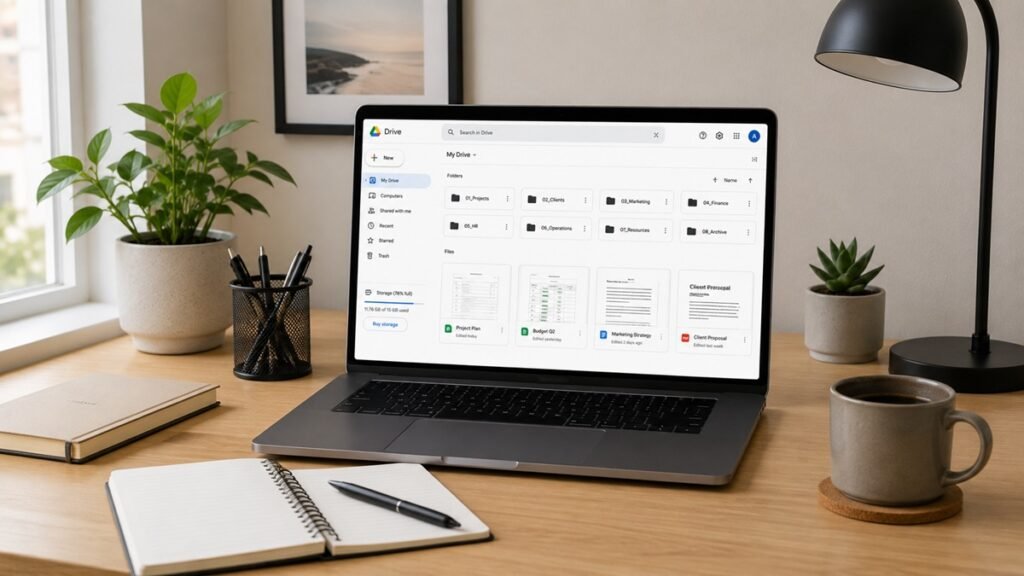
This guide will show you how to organize Google Drive for personal use so your files are easier to find, easier to manage, and less stressful to maintain.
1. Start With a Quick Google Drive Cleanup
Before creating new folders, take a quick look at what is already in your Google Drive. This helps you understand what types of files you have and where the biggest clutter is.
Look for:
- Untitled documents
- Duplicate files
- Old downloads
- Random screenshots
- Files saved in the wrong place
- Empty folders
- Old shared files
- Files you no longer need
You do not need to clean everything immediately. Start by deleting obvious clutter and moving important files into a temporary folder if you are not sure where they belong yet.
If your entire digital workspace feels messy, you may want to start with our digital declutter checklist for beginners before organizing Google Drive in detail.
2. Create a Simple Main Folder Structure
A good Google Drive system starts with a few main folders. These folders should match the way you actually use your files.
For personal use, you may want folders such as:
- Personal Documents
- Home
- Finance
- Receipts
- Photos
- Work
- School
- Projects
- Templates
- Archive
You do not need to use all of these folders. Choose the categories that fit your life. If you do not have school files, skip that folder. If you do not use Google Drive for photos, skip the Photos folder.
The goal is to make your main Drive page easy to understand at a glance.
3. Avoid Creating Too Many Folders
Too many folders can make Google Drive harder to use. If every file is buried inside several layers of folders, you may spend more time searching than organizing.
Start with broad folders first. Add subfolders only when a main folder becomes too full.
For example, instead of starting with a complicated structure like this:
- Documents > Personal > Home > Apartment > Lease > 2026 > Final
You could start with something simpler:
- Home > Apartment Documents
A simple structure is easier to maintain. You can always add more detail later if needed.
4. Use Clear File Names
File names are just as important as folders. A clear file name helps you find a document later, even if it is not in the perfect folder.
Try to include useful details in the file name, such as:
- Document type
- Topic
- Date or year
- Company, person, or project name
Examples of clear file names:
- Apartment-Lease-2026.pdf
- Electric-Bill-April-2026.pdf
- Resume-Jane-Smith-2026.docx
- Car-Insurance-Policy-2026.pdf
- Home-Office-Receipt-Desk-Lamp.pdf
- Travel-Itinerary-New-Zealand-2026.pdf
Avoid file names like:
- Untitled document
- New file
- Final final
- Scan 001
- Document copy
If you do not want to rename every old file, start by using better names for new files going forward.
5. Organize Important Documents First
If your Google Drive is very messy, do not try to organize everything at once. Start with your most important documents.
Important files may include:
- Identification copies
- Lease or home documents
- Insurance documents
- Tax-related documents
- School records
- Work documents
- Important receipts
- Warranty documents
Create a folder for important documents and sort them into clear subfolders if needed.
If you also keep physical papers at home, our guide on how to organize important documents at home can help you connect your paper and digital systems.
6. Use an Archive Folder for Old Files
Not every old file needs to be deleted. Some files are not useful every day, but you may still want to keep them for reference.
An Archive folder gives those files a place to go without cluttering your active folders.
You can create archive folders such as:
- Archive
- Archive 2024
- Old Projects
- Past Documents
- Previous Versions
Move old but useful files into the archive. This keeps your main folders focused on current and active documents.
Try not to use the archive as a place for everything you are afraid to delete. It should still have some structure.
7. Clean Up Shared With Me Files
The “Shared with me” area in Google Drive can become confusing because it includes files other people shared with you. These files may not be stored in your main Drive unless you add shortcuts or organize them.
Review shared files and ask:
- Do I still need access to this file?
- Is this file related to a current project?
- Should I add a shortcut to one of my folders?
- Is this file old or no longer relevant?
For files you use often, add a shortcut to the correct folder in your Drive. For old files you do not need, simply leave them alone or remove access if appropriate.
Do not add every shared file to your main folder system. Only organize the ones you actually use.
8. Use Shortcuts Instead of Duplicate Copies
Sometimes one file seems to belong in more than one folder. For example, a receipt for a desk lamp might belong in both “Receipts” and “Home Office.”
Instead of making duplicate copies, use shortcuts when possible. This helps you avoid having multiple versions of the same file.
Shortcuts can be helpful for:
- Shared project files
- Documents used in multiple categories
- Templates
- Important reference files
- Files connected to more than one folder
Using shortcuts helps keep your Drive cleaner and reduces confusion about which file is the current version.
9. Create a Folder for Temporary Files
Temporary files need a place to go. Without one, they often end up scattered across your Drive.
Create a folder called something like:
- Temporary
- Review Later
- Inbox
- Sort Soon
Use this folder for files you are not ready to organize yet. This may include downloads, quick scans, temporary notes, or documents you need to review.
The important part is to review this folder regularly. If you never empty it, it becomes another clutter folder.
A good habit is to check your temporary folder once a week and move files to the right place.
10. Organize Google Docs, Sheets, and Slides
Google Drive is not only for uploaded files. It also stores Google Docs, Sheets, Slides, Forms, and other Google files.
These files can become cluttered if you create new documents often but do not name or organize them.
To keep them organized:
- Name new files before you start working
- Move finished files into the right folder
- Delete test documents you no longer need
- Use templates for repeated tasks
- Archive old project files
If you create many documents, consider using folders such as:
- Personal Notes
- Planning
- Budget Sheets
- Templates
- Writing
- Projects
Keeping Google-created files organized is just as important as organizing PDFs, images, and downloads.
11. Review Large Files
Large files can take up storage space quickly. These may include videos, photo collections, large PDFs, backups, downloaded files, and duplicated folders.
Review large files occasionally and ask:
- Do I still need this file?
- Is it stored somewhere else?
- Is this a duplicate?
- Should this be archived?
- Can I delete it safely?
Do not delete important files just to save space. But if you find large files you clearly no longer need, removing them can make your Drive easier to manage.
If a file is important, consider keeping a backup in another safe location.
12. Organize Photos Only If You Use Google Drive for Photos
Some people use Google Drive for photos, while others use a separate photo app or cloud service. If you do not store photos in Google Drive, you can skip this step.
If you do use Google Drive for photos, create simple folders by year, event, or purpose.
Examples:
- Photos 2026
- Family Photos
- Travel Photos
- Home Projects
- Receipts and Product Photos
Delete blurry photos, accidental screenshots, and duplicate images when you notice them.
Do not try to organize years of photos in one sitting. Start with recent photos or the photos that matter most.
13. Keep Sensitive Files More Carefully
Some files need extra care because they contain private or sensitive information. This may include identification documents, financial records, medical documents, contracts, or personal records.
For sensitive files, consider:
- Using clear but not overly detailed file names
- Keeping them in a dedicated folder
- Reviewing sharing permissions
- Removing access for people who no longer need it
- Following official security guidance for important accounts
This article is for general organization only. For security-sensitive decisions, follow Google’s official account security guidance or consult a qualified professional if needed.
14. Review Sharing Permissions
Over time, you may share files with friends, family, coworkers, clients, classmates, or other people. Some of those shared files may no longer need to be shared.
Review sharing permissions for important files and folders. Look for files that are:
- Shared with old contacts
- Available through public links
- Editable by people who only need view access
- Connected to finished projects
- No longer relevant
For personal files, it is usually better to share only what is needed and remove access when it is no longer necessary.
This helps keep your personal Drive more organized and private.
15. Create a Weekly Google Drive Reset
Google Drive is easier to manage when you review it regularly. A short weekly reset can prevent files from piling up again.
Your weekly Google Drive reset may include:
- Rename unclear files
- Move files from the temporary folder
- Delete files you no longer need
- Review recent uploads
- Organize new documents
- Check shared files
- Archive finished projects
This does not need to take long. Even 10 minutes a week can keep your Drive much cleaner.
You can also include this in a broader weekly reset routine for your home, desk, and digital life.
16. Google Drive Organization Checklist
Use this checklist when you want to organize Google Drive for personal use.
Basic Cleanup
- Delete obvious clutter
- Remove duplicate files
- Rename unclear documents
- Move files out of random locations
- Create a temporary review folder
Main Folders
- Create broad folder categories
- Use names that match your real life
- Avoid too many folder layers
- Add subfolders only when needed
- Keep active files easy to access
File Names
- Use clear file names
- Include dates when helpful
- Avoid vague names like “Untitled”
- Rename important files first
- Use a consistent naming style
Important Documents
- Create a folder for important records
- Sort documents by category
- Keep sensitive files more carefully
- Review sharing permissions
- Back up important files when needed
Shared Files
- Review files shared with you
- Add shortcuts only for useful files
- Remove access when appropriate
- Avoid duplicate copies
- Check public links for personal files
Maintenance
- Review recent uploads weekly
- Empty or sort the temporary folder
- Archive old projects
- Delete files you no longer need
- Keep your main folder page simple
Common Google Drive Organization Mistakes
Google Drive organization should make your files easier to use, not harder. Try to avoid these common mistakes.
Creating too many folders too soon
A complicated folder system can become difficult to maintain. Start simple and add more structure only when needed.
Leaving files named “Untitled”
Unclear file names make documents harder to find later. Rename important files as soon as possible.
Using Google Drive as a dumping ground
Google Drive should not become a place where every random file is saved forever. Delete, archive, or organize files regularly.
Making duplicate copies of the same file
Duplicates can create confusion. Use shortcuts when a file belongs in more than one place.
Ignoring shared files
Shared files can become cluttered too. Review files shared with you and organize only the ones you actually use.
Forgetting privacy and permissions
If you share files often, review who has access from time to time, especially for personal or sensitive documents.
Final Thoughts
Organizing Google Drive does not need to be complicated. Start with a few main folders, use clear file names, clean up old files, and create a simple place for temporary documents.
Then review shared files, organize important documents, archive old projects, and check your Drive regularly so clutter does not build up again.
The goal is not to create a perfect folder system. The goal is to make your personal files easier to find, easier to protect, and easier to manage over time.