A digital declutter can make your computer, phone, inbox, and online files feel easier to manage. You do not need to delete everything, use complicated apps, or organize your entire digital life in one day.
The goal is simple: remove what you no longer need, organize what you want to keep, and make your most important digital items easier to find.
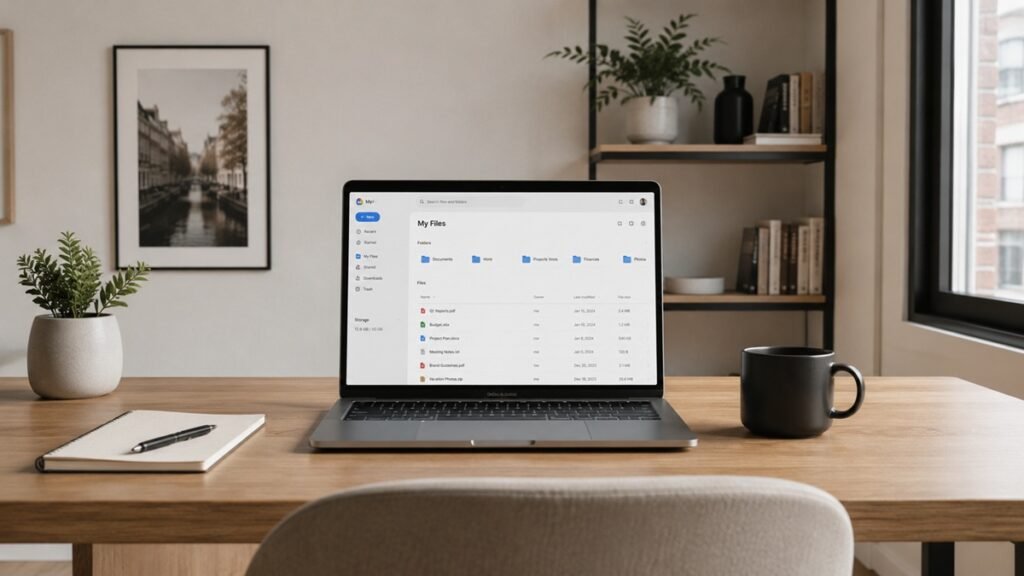
This digital declutter checklist is designed for beginners. You can follow it step by step, or choose one section at a time when you have a few minutes.
1. Start With a Simple Digital Declutter Plan
Before you start deleting files or moving folders, take a few minutes to decide what you want to improve first. A digital declutter works better when you focus on one area at a time.
You might want to clean up your:
- Computer desktop
- Downloads folder
- Email inbox
- Cloud storage
- Phone photos
- Apps and software
- Bookmarks
- Passwords and accounts
If everything feels messy, start with the place that bothers you most. For many people, that is the desktop, downloads folder, or email inbox.
You do not need a perfect system at the beginning. You only need a clear starting point.
2. Clean Up Your Computer Desktop
Your desktop is often the first place digital clutter appears. Screenshots, temporary files, downloads, documents, and random shortcuts can quickly make your computer feel messy.
Start by looking at every item on your desktop and sorting it into one of three groups:
- Keep
- Move
- Delete
Keep only the files and shortcuts you use regularly. Move important documents into proper folders. Delete files you no longer need.
A simple desktop setup may include:
- A folder for current projects
- A folder for temporary files
- One or two important shortcuts
- A clean background that is easy to look at
Try not to use your desktop as permanent storage. It is better to treat it as a temporary workspace.
If your physical workspace also feels cluttered, you may want to start with our small home office setup checklist to create a cleaner desk and work area.
3. Organize Your Downloads Folder
The Downloads folder can become one of the messiest places on your computer. It often contains old PDFs, images, installers, documents, receipts, and files you only needed once.
Open your Downloads folder and sort files by date. This makes it easier to see what is old and what may still be useful.
Use this simple process:
- Delete files you clearly no longer need
- Move important documents to the right folder
- Remove duplicate downloads
- Delete old software installers
- Rename unclear files before saving them
If you are not sure whether you need a file, create a temporary folder called “Review Later.” Move uncertain files there and check them again after a few weeks.
The goal is not to empty your Downloads folder completely. The goal is to stop it from becoming a permanent dumping ground.
4. Create a Simple Folder System
A good folder system helps you find files faster. It does not need to be complicated. In fact, a simple folder structure is usually easier to maintain.
Start with broad categories that match your life or work.
Example folder categories:
- Personal
- Work
- Finance
- Home
- Photos
- Receipts
- Projects
- Archive
Inside each main folder, you can create smaller folders only when needed. Avoid making too many layers at the beginning because that can make files harder to find.
For example, a simple personal folder may look like this:
- Personal
- Personal > Documents
- Personal > Receipts
- Personal > Travel
- Personal > Important Records
Use folder names that are clear and easy to understand. A folder called “Important Documents” is usually better than a folder called “Stuff.”
5. Rename Files So They Are Easy to Find
File names matter. A file named “document-final-new-2.pdf” is much harder to find later than a file with a clear name.
When renaming files, include basic details such as:
- Topic
- Date
- Company or person name
- Document type
Here are some simple examples:
- Electric-Bill-April-2026.pdf
- Apartment-Lease-2026.pdf
- Resume-Jane-Smith-2026.pdf
- Tax-Receipt-Office-Supplies.pdf
- Project-Notes-May-2026.docx
You do not need to rename every old file at once. Start with important files and new files going forward.
A good file name should help you understand what the file is before you open it.
6. Clean Up Your Email Inbox
Email clutter can make it harder to notice important messages. A messy inbox may include newsletters, receipts, promotions, old conversations, account alerts, and unread messages.
Start with a simple inbox cleanup instead of trying to reach inbox zero immediately.
Use this checklist:
- Delete obvious spam or outdated emails
- Unsubscribe from newsletters you no longer read
- Archive emails you want to keep but do not need to see daily
- Create folders or labels for important categories
- Search for large attachments and remove what you no longer need
- Mark old unimportant emails as read
Useful email folders or labels may include:
- Receipts
- Bills
- Travel
- Work
- Personal
- Important
- Read Later
Do not create too many labels in the beginning. A simple system that you actually use is better than a complex system you forget about.
Later, you can follow a more detailed guide on how to clean up your Gmail inbox if email is your biggest source of digital clutter.
7. Review Your Cloud Storage
Cloud storage is useful, but it can also become messy if you upload files without organizing them. Google Drive, iCloud, Dropbox, OneDrive, and similar services can quickly collect duplicate files and old folders.
Start by checking your main cloud storage account. Look for:
- Duplicate folders
- Old shared files
- Files with unclear names
- Large files you no longer need
- Documents stored in the wrong location
- Folders that are no longer relevant
Then create a basic structure that matches the folder system on your computer. This makes it easier to know where files should go.
For example:
- Documents
- Photos
- Receipts
- Work
- Home
- Archive
If you use Google Drive often, you can learn more in our guide on how to organize Google Drive for personal use.
8. Organize Your Photos and Screenshots
Photos and screenshots can take up a lot of space on your phone, computer, and cloud storage. They are also easy to ignore because they pile up slowly.
Start with your most obvious clutter:
- Blurry photos
- Duplicate photos
- Accidental screenshots
- Old memes or images you no longer need
- Temporary photos of notes, labels, or receipts
Next, create simple photo folders or albums. You can organize photos by year, event, person, place, or purpose.
Simple photo organization examples:
- 2026 Family
- 2026 Travel
- Home Projects
- Receipts
- Important Screenshots
You do not need to organize every photo perfectly. Start by removing what you clearly do not need, then organize the photos that matter most.
9. Delete Apps and Software You No Longer Use
Unused apps can take up space, slow down devices, and make your screen feel cluttered. Review the apps on your phone, tablet, and computer.
Ask yourself:
- Have I used this app in the last few months?
- Do I still need this app?
- Is there another app that already does the same thing?
- Does this app send too many notifications?
- Is this app still safe and trustworthy?
Delete or uninstall apps you no longer use. For apps you keep, organize them into simple groups.
Example phone app folders:
- Work
- Finance
- Travel
- Shopping
- Tools
- Health
- Reading
You can also move rarely used apps away from your main home screen. Keep your most useful apps easy to access and remove distractions where possible.
10. Clean Up Your Browser Bookmarks
Bookmarks are helpful only when you can actually find what you saved. If your browser has hundreds of old bookmarks, it may be time to clean them up.
Start by deleting bookmarks you no longer need. Then organize the rest into simple folders.
Useful bookmark folders may include:
- Work
- Personal
- Learning
- Tools
- Shopping
- Reference
- Read Later
Try not to save every interesting page as a bookmark. If you only want to read something once, use a temporary “Read Later” folder and review it weekly.
A small number of useful bookmarks is better than a long list you never open.
11. Review Your Passwords and Online Accounts
Password and account clutter can make your digital life harder to manage. You may have old accounts, repeated passwords, forgotten logins, or saved passwords you no longer use.
Start by reviewing your most important accounts, such as:
- Email accounts
- Banking or payment accounts
- Cloud storage accounts
- Work accounts
- Shopping accounts
- Social media accounts
For important accounts, make sure your login details are current and stored safely. Consider using a reputable password manager if you want a more organized way to store passwords.
You can also close accounts you no longer use, especially if they contain personal information.
This section is for general organization only. For security-sensitive decisions, follow official guidance from the service provider or a qualified professional.
12. Turn Off Unnecessary Notifications
Digital clutter is not only about files. Notifications can also create mental clutter and make it harder to focus.
Review notifications on your phone, computer, browser, and email apps.
Consider turning off notifications for:
- Shopping apps
- Games
- News apps you rarely read
- Social media updates
- Promotional emails
- Apps that interrupt you too often
Keep notifications for things that are truly important, such as calendar reminders, work messages, family communication, banking alerts, or delivery updates.
The goal is not to remove every notification. The goal is to make sure notifications are useful instead of distracting.
13. Back Up Important Files
Before deleting large amounts of data, make sure your important files are backed up. A digital declutter should make your files easier to manage, not put important information at risk.
Important files may include:
- Personal documents
- Work files
- Family photos
- Receipts
- Tax-related documents
- Home or rental documents
- School or study files
You can back up files using an external drive, cloud storage, or another method that fits your needs.
For very important documents, it is often helpful to keep more than one copy in separate locations.
If you also keep paper copies at home, our guide on how to organize important documents at home can help you create a simple system.
14. Create a Weekly Digital Reset Routine
A digital declutter works best when it becomes a small habit. Instead of waiting until your files and inbox are overwhelming, set aside a few minutes each week for a digital reset.
A simple weekly digital reset may include:
- Clear your desktop
- Empty or review your Downloads folder
- Delete unnecessary screenshots
- Archive or delete old emails
- Review your calendar
- Save important files to the right folders
- Back up important documents
- Close unused browser tabs
This does not need to take a long time. Even 10 to 15 minutes each week can help keep digital clutter under control.
You can also connect this with a larger weekly reset routine for your home, workspace, and digital life.
15. Beginner Digital Declutter Checklist
Use this checklist as a quick guide when you want to clean up your digital life.
Computer Desktop
- Delete files you no longer need
- Move important files into folders
- Remove unused shortcuts
- Keep only daily-use items visible
Downloads Folder
- Sort files by date
- Delete old installers
- Move documents to the correct folders
- Rename unclear files
- Create a temporary “Review Later” folder if needed
File Organization
- Create simple main folders
- Use clear folder names
- Avoid too many folder layers
- Rename important files clearly
- Archive old but useful files
- Delete outdated emails
- Unsubscribe from newsletters you no longer read
- Archive emails you want to keep
- Create a few useful labels or folders
- Mark old unimportant messages as read
Cloud Storage
- Remove duplicate files
- Organize files into broad folders
- Review shared files
- Delete large files you no longer need
- Keep important documents easy to find
Photos and Screenshots
- Delete blurry photos
- Remove duplicate photos
- Delete unnecessary screenshots
- Create simple albums or folders
- Back up important photos
Apps and Software
- Delete unused apps
- Organize apps into folders
- Remove apps that distract you
- Update apps you still use
- Review app notifications
Passwords and Accounts
- Review important accounts
- Remove saved passwords you no longer need
- Close old accounts when appropriate
- Store important login details safely
- Follow official security guidance for sensitive accounts
Weekly Reset
- Clear your desktop
- Review your Downloads folder
- Clean up screenshots
- Archive or delete old emails
- Save files to the correct folders
- Back up important files
Common Digital Decluttering Mistakes
Digital decluttering is simple, but a few common mistakes can make it harder than it needs to be.
Trying to organize everything in one day
You do not need to fix your entire digital life at once. Start with one area, such as your desktop or inbox.
Creating too many folders
Too many folders can become confusing. Start with broad categories and add subfolders only when necessary.
Keeping files because you are unsure
If you are not ready to delete something, move it to a temporary review folder. Check it again later.
Not backing up important files
Before deleting large numbers of files, make sure important documents and photos are safely backed up.
Saving everything to the desktop
Your desktop should be a workspace, not permanent storage. Move important files into proper folders.
Ignoring email clutter
Email is part of your digital workspace. A cleaner inbox can make daily tasks feel easier to manage.
Final Thoughts
A digital declutter does not need to be perfect. The goal is to make your digital life easier to use, easier to search, and less stressful.
Start with one small area, such as your desktop, downloads folder, inbox, or photos. Delete what you no longer need, organize what matters, and create a simple routine to keep things from piling up again.
Over time, small digital habits can make your computer, phone, and online accounts feel much more manageable.