A messy Gmail inbox can make it harder to find important emails, notice new messages, and stay organized. Old newsletters, receipts, promotions, account alerts, unread messages, and forgotten conversations can pile up quickly.
The good news is that you do not need to reach inbox zero or clean up years of email in one day. A simple Gmail cleanup can make your inbox easier to use without feeling overwhelming.
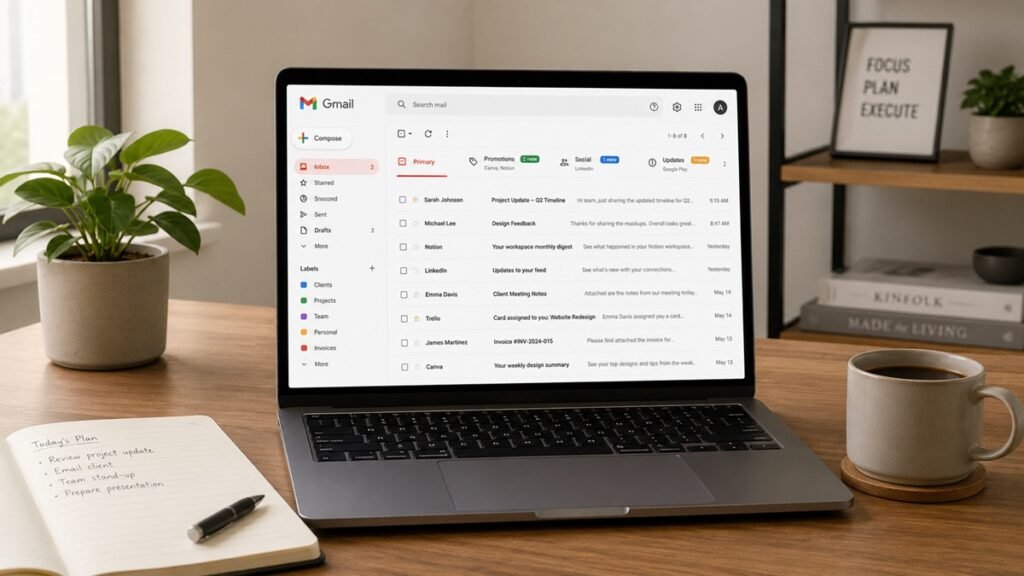
This guide will show you how to clean up your Gmail inbox step by step using simple habits, labels, search, archiving, and regular maintenance.
1. Start With a Simple Inbox Goal
Before you start deleting emails, decide what a cleaner inbox means for you. You do not need a perfect inbox. You only need an inbox that helps you find what matters and ignore what does not.
Your goal might be to:
- Reduce unread emails
- Remove old newsletters
- Find important messages faster
- Organize receipts and bills
- Clear promotional clutter
- Archive old conversations
- Create a better email routine
If your digital life feels messy beyond email, you may want to start with our digital declutter checklist for beginners to organize your files, inbox, apps, and cloud storage together.
2. Understand the Difference Between Delete and Archive
One of the easiest ways to clean up Gmail is to understand the difference between deleting and archiving.
Deleting removes emails you no longer need. Archiving removes emails from your inbox but keeps them in your Gmail account so you can search for them later.
Use delete for:
- Spam
- Expired promotions
- Old newsletters you do not need
- Duplicate messages
- Emails with no future value
Use archive for:
- Old conversations you may need later
- Receipts you want to keep
- Completed tasks
- Reference emails
- Messages that do not need action anymore
This simple difference can make Gmail much easier to manage. You do not need to delete everything to have a clean inbox.
3. Clear Obvious Junk First
Start with the easiest emails first. This gives you quick progress and makes your inbox feel less overwhelming.
Look for emails that are clearly not useful anymore, such as:
- Expired sales emails
- Old delivery notifications
- Outdated event reminders
- Promotions from stores you no longer use
- Old newsletters you never read
- Duplicate notifications
- Spam or suspicious emails
Do not spend too much time deciding on every email. If it is clearly not useful, delete it. If you are unsure, archive it or leave it for a later review.
The goal of this first pass is simple: remove the obvious clutter.
4. Use Gmail Search to Find Groups of Emails
Gmail search can help you clean up emails in groups instead of handling one message at a time. This is one of the fastest ways to reduce inbox clutter.
You can search by sender, subject, word, date, attachment, or category.
Useful search examples include:
- from:newsletter@example.com
- subject:receipt
- older_than:1y
- has:attachment
- unsubscribe
- category:promotions
- category:social
For example, if you see many emails from the same store, search for that sender. Then review the results and delete or archive them in batches.
This is much faster than scrolling through your inbox page by page.
5. Unsubscribe From Emails You No Longer Read
Deleting newsletters helps today, but unsubscribing helps prevent future clutter. If you keep receiving emails you never open, it may be time to unsubscribe.
Look for newsletters, promotions, or updates that you ignore regularly. Then use the unsubscribe link if it is available and trustworthy.
Good candidates for unsubscribing include:
- Stores you no longer shop from
- Newsletters you never read
- Old course updates
- Event lists you no longer need
- Promotional emails that distract you
- Duplicate updates from the same company
Be careful with suspicious emails. If an email looks unsafe or unfamiliar, avoid clicking links inside it. You can mark it as spam instead.
6. Archive Emails That Do Not Need Action
Your inbox should mostly show emails that are new, active, or need attention. If an email is finished but still worth keeping, archive it.
Emails you may want to archive include:
- Completed conversations
- Old work messages
- Receipts you may need later
- Travel confirmations from past trips
- Account updates you want to keep
- Reference information
Archiving helps reduce inbox clutter without permanently removing emails.
If you also save important documents from Gmail into Google Drive, our guide on how to organize Google Drive for personal use can help keep those files organized too.
7. Create a Few Useful Gmail Labels
Labels can help you organize Gmail without creating a complicated system. The key is to use only a few labels that are truly useful.
Simple Gmail label ideas include:
- Receipts
- Bills
- Travel
- Work
- Personal
- Important
- Read Later
- Home
Avoid creating too many labels at the beginning. Too many labels can become another form of clutter.
Start with three to five labels. Add more only when you notice a real need.
8. Use Stars for Emails That Need Follow-Up
Stars are helpful for marking emails that need attention. Instead of leaving everything unread, use stars for messages you need to revisit.
You might star emails that involve:
- Tasks you need to complete
- Replies you need to send
- Forms you need to fill out
- Bills you need to check
- Information you need later this week
Try not to star too many emails. If every email is starred, the star stops being useful.
A good rule is to use stars only for emails that need action soon.
9. Create a Simple “Action” System
A clean inbox is easier to maintain when you know what to do with each email. You can use a simple action system to process messages quickly.
For each email, choose one action:
- Reply
- Archive
- Delete
- Label
- Star
- Move to read later
This prevents emails from sitting in your inbox because you are unsure what to do with them.
If an email takes less than a few minutes to handle, consider dealing with it right away. If it needs more time, star it or label it so you can return to it later.
10. Clean Up the Promotions Tab
The Promotions tab can collect a large number of sales emails, offers, store updates, and newsletters. This area is often one of the easiest places to clean.
Open the Promotions tab and look for senders you no longer care about.
You can:
- Delete old promotions
- Unsubscribe from stores you no longer use
- Search by sender and delete in batches
- Keep only emails related to current purchases
- Archive receipts or order confirmations you need
Most promotional emails lose value quickly. If an offer is expired or irrelevant, it probably does not need to stay in your inbox.
11. Review Emails With Attachments
Emails with attachments can be useful, but they can also take up storage and become hard to manage. Search for emails with attachments and review them carefully.
Attachment emails may include:
- PDF documents
- Receipts
- Photos
- Forms
- Invoices
- Work documents
- School files
If the attachment is important, download it or save it to the right place. If you save it to Google Drive, use a clear file name and folder.
For physical and digital records, you may also find our guide on how to organize important documents at home helpful.
12. Mark Old Unimportant Emails as Read
A huge unread count can make Gmail feel stressful. If you have many old unread emails that are no longer important, you may not need to open each one.
You can search for old unread emails and mark them as read after reviewing the results.
This can be useful for:
- Old newsletters
- Promotional emails
- Social notifications
- Outdated alerts
- Emails from years ago
Be careful not to mark important current emails as read by accident. Review the search results before applying changes in bulk.
The goal is to make your unread count meaningful again.
13. Use Filters for Repeating Emails
Gmail filters can help organize emails automatically. They are useful for messages that arrive regularly from the same sender or with the same subject pattern.
You might use filters for:
- Receipts
- Bills
- Newsletters
- Work notifications
- School updates
- Bank or account alerts
- Delivery notifications
A filter can automatically apply a label, archive a message, mark it as read, or send it to a specific category.
Start with one or two simple filters. Do not create too many at once, or it may become hard to understand where your emails are going.
14. Create a Weekly Gmail Reset Routine
Gmail is easier to manage when you clean it regularly. A weekly reset can prevent your inbox from becoming overwhelming again.
A simple weekly Gmail reset may include:
- Delete obvious junk
- Archive completed conversations
- Unsubscribe from unwanted newsletters
- Review starred emails
- Check important labels
- Clear old promotions
- Save important attachments
This routine can take only 10 to 15 minutes. The goal is not to make your inbox perfect. The goal is to keep it usable.
You can also include Gmail cleanup in a broader weekly reset routine for your home, workspace, and digital life.
15. Gmail Inbox Cleanup Checklist
Use this checklist when you want to clean up your Gmail inbox without getting overwhelmed.
Quick Cleanup
- Delete obvious junk emails
- Archive completed conversations
- Remove expired promotions
- Mark old unimportant emails as read
- Empty spam and trash when appropriate
Search and Batch Actions
- Search by sender
- Search for old emails
- Search for emails with attachments
- Search for newsletters
- Delete or archive emails in groups
Labels and Organization
- Create a few useful labels
- Label receipts and bills
- Use stars for follow-up emails
- Move read-later emails out of the main inbox
- Avoid creating too many labels
Subscriptions
- Unsubscribe from newsletters you do not read
- Remove old store promotions
- Mark suspicious emails as spam
- Keep only useful updates
Attachments
- Review important attachments
- Save useful files to the right folder
- Delete emails with unnecessary attachments
- Use clear file names for saved documents
Maintenance
- Check Gmail weekly
- Archive finished emails
- Review starred messages
- Clean the Promotions tab
- Update filters when needed
Common Gmail Cleanup Mistakes
Cleaning up Gmail is easier when you avoid a few common mistakes.
Trying to reach inbox zero immediately
You do not need an empty inbox to be organized. A useful inbox is better than a perfect inbox.
Deleting emails too quickly
Some emails may contain receipts, account information, or important records. Archive emails if you are unsure.
Creating too many labels
Labels are helpful only if you use them. Start with a few simple labels and add more later if needed.
Ignoring subscriptions
If you only delete unwanted newsletters without unsubscribing, they will keep coming back.
Using the inbox as permanent storage
Your inbox should not hold every email forever. Archive completed emails and label important ones.
Never doing maintenance
A one-time cleanup helps, but a short weekly reset keeps Gmail manageable over time.
Final Thoughts
Cleaning up your Gmail inbox does not need to be stressful. Start with obvious clutter, understand the difference between delete and archive, unsubscribe from emails you no longer read, and use simple labels for important categories.
Then create a short weekly routine to keep your inbox from becoming overwhelming again.
The goal is not to have a perfect inbox. The goal is to make Gmail easier to search, easier to manage, and more useful in your everyday life.